
The Fetcher Manual
GETTING FETCH
Fetcher is a monthly subscription-based service designed to optimize PR, help you avoid errors and save you time and annoyance so you have more time to socialize IRL. The more you use Fetcher, the more useful it becomes; helping you collect data indigenous to your events, forecasting return rates on attendance, gathering press coverage and organizing responses from the people you care about, without the clutter previously associated with the event promotion process. Fetcher keeps your contacts fresh; because you only send them what they want without over or under following up; and quickly and easily allows you to share hi and lo res photo galleries in a clean, pretty, social-friendly format.
Sign up for Fetcher easily with the option to end your service at any time. Your first event is on us. Tell us what you love or don’t love. We welcome feedback because Fetcher is an iterative pet that will continue to incorporate your user feedback as you populate it with your proprietary data.
Sign Up
https://www.getfetcher.com/sign-up
After signing up and confirming your identity via the activation email, you can log-in to the web-based interface and also sign into the app, which is available for free at the App Store: GetFetcher
Join your fellow foxes on instagram and Twitter @GetFetcher
INTERNAL CONTACTS
Defined: Internal contacts allow you and anyone else you want to send invites or custom emails for your events.
Establish your internal contact(s) by choosing contacts, internal contacts on the left side of the page and connecting your email accounts. You may add additional accounts later. Email accounts can be actual people like you or your assistant or boss, or event emails created for specific events.
EXTERNAL CONTACTS
Defined: The people attending your events.
Upload a CSV or Excel of your contact list. Keep in mind you do need at minimum all contacts’ first names, last names and emails, as specified at http://help.getfetcher.com/importing-contacts-to-fetcher/.
Fetcher will alert you to false email addresses and doubles giving you the option to edit or re-upload. If you upload doubles of emails you have on file in the future, Fetcher will catch them. If you have doubles of people’s names with different emails, the system will allow this. Contacts can have primary (work) and secondary (personal) emails listed under the same contact. In correspondence you will have the option to select primary or secondary email.
All contacts will be coded according to your preferences in one of four groups: Press, Civilians, VIP or Client. If you do not specify a code when creating a contact or uploading a list of contacts, they will automatically be listed as Press (but can be manually changed at any time). The Code will affect the drafts in correspondence, because you aren’t going to send a press release to a civilian guest or a pre-event photo gallery link to a VIP guest…and so on…You decide.
Click on a person’s face to add their photo via any existent online link. Crop the photo to what you think looks good.
VENUES
Input venues as you choose them for events; feel free to have a “virtual venue” for pitches not centered around an actual space. The venues exist for when users wish to utilize the “templates” in CORRESPONDENCE and auto-generate standard industry-style invites (but all templates can be adapted and personalized for different targets). You’ll notice you have the option to differentiate “Space Name” within “Venue”, so for example you can differentiate between a luncheon at the Gramercy Park Hotel’s Terrace Gardens vs. a Cocktail party at their Rose Bar.
EVENTS
Create events:
- Click Events
- Click Add New Event Button

- Select Venues from drop down
- Name Event
- Name Event Type (i.e. Cocktail, Luncheon, Soiree, or Pitch (Internal Ref)
- Select Primary or Secondary email associated with the contact.
Once you have an event, add contacts to your guest list by clicking the guests you want invited from your rolodex;
- Click CONTACTS
- Check off guests individually, search using tags or affiliations, or search past event guest lists
- Once you have your guests selected, click the event you wish to invite them to from the dropdown in the upper right hand corner.
As you get used to the system, create a new list from excel or csv export, (doubles of contacts will merge into your master contacts list) and use the upload button at the top of the contact page:

PHOTO GALLERIES
Create as many galleries as you like. Share the whole gallery for download or share individual photos. Each photo and each gallery can be titled and downloaded in hi or lo resolution.
Note: To embed a lo res photo into any correspondence it must first be in a gallery corresponding with that event.
CORRESPONDENCE
SAVE-THE-DATES
Save-the-Dates may be sent one time per person per event.
Invites may be sent one time per person per event.
Follow-ups may be sent an unlimited number of times (that’s Fetcher!)
Thank You notes may be sent one time per person per event.
Whether a draft has been sent can be seen by clicking the eye at the top of the page. If you have already sent a Save-the-Date, Invite or Thank you to a guest for an event the system will stop you from doing it twice (we’ve all been there :)
Here’s where it gets interesting….
Once you send the Save-the-Date, you may (if you’re any good at PR) have some press who say they’re covering your event or guests who say they’re definitely coming before the official invitation has gone out. And you obviously want to stay organized. So, you can manually note their YES RSVP in the EVENTS -> GUEST CHECK-IN section.
Now say a writer says off the bat she’s covering your event and you don’t want to forget. You definitely don’t want to pitch her a mass pitch moving forward, so you head over to RECAPS -> PENDING KILL and click the grey Fox. The Fox will turn turquoise as it has now captured its prey. Moving forward with this event, this editor and all others you are courting to cover your event who have expressed interest, once clicked in RECAPS will be in the PENDING KILL subsection of CORRESPONDENCE for tailored emails. Once PRESS is coded as PENDING KILL they are out of the Fetcher blast circuit (so you don’t accidentally say Hi Deb, I wanted to follow-up on coverage, when Deb has already noted she’s giving you’re a front-of-book piece) and so on…
Each CODE (VIP, Civilian, Press and Client) has a different draft saved with it. If you are only dealing with Press just keep this pull down selected. You select the code after you;
-
Decide who the email is coming from (you can have multiple internal contacts)
AND
-
Know who it’s going to
You must click save ( ) to save a draft before sending or it will send the most recent saved draft. All your sent mail is viewable by clicking this button.

Feel free to test on yourself as internal contacts as many times you want before blasting or sending personal notes…to get the look JUST RIGHT… #SoFetch.
INVITATIONS
The invitation template (totally adaptable) includes YES, NO and MAYBE RSVP links designed to look like you hand-embedded them because obviously you are that good on the computer… Fetcher is designed to look like all correspondence comes tailored from you; because to a degree it does and no one likes blasts.
Include relevant photos and script. Feel free to test on yourself as internal contacts as many times as you want before sending en masse or sending personal notes, keeping in mind the most recent saved version is what will be sent, not the active text.
FETCHER
The Fetcher button allows you to tailor five versions of notes to each CODE group of your guest list depending on whether they said YES, NO, MAYBE or have been UNRESPONSIVE to your invitation.
Attending Guest List (those who said YES either via clicking your link or you manually clicked them as YES in Guest Check-In because they for example sent you a text or direct email or don’t understand the basics of clicking
Not Attending Guest List (those who said NO either via clicking your link or you manually clicked them as NO in Guest Check-in)
Maybe Guest List (those who said MAYBE either via clicking your link or you manually clicked them MAYBE in Guest Check-in)
Unresponsive Guest List (those who have done nada yet #howrude)
We also included an All Guest List option in case there’s an update that effects everyone like date changes, cancellations, etc.
PENDING PRESS
Now as you get more pending kill all those you marked with prey in their mouths in RECAPS will appear in PENDING PRESS under FETCHER for you to send tailored notes to, exclusives, etc. Please note, this is a loving title for all our friends in editorial; we court and sleigh our kill; we don’t over hunt, never shoot twice on the same hunting trip and only hunt those who show through our track records they wish to be hunted and attend our hunting parties. It’s a delicate game…designed to delight, never annoy.
GUEST CHECK-IN
In EVENTS you will see GUEST CHECK-IN where your entire guest list is visible. Your Expected Guests will always appear at the top regardless of whether you’re online or on your iPhone or iPad app. The app also allows you to add additional guests to guests and new guests on-site, and requires their email; handy for tasteful follow-up.
THANK YOU
After an event, we recommend reviewing the “Checked-In” list to make sure no one was missed; because Fetcher will allow you to send one version of a Thank You to your Expected List who actually came vs. the losers who said they were coming and didn’t show.
PHOTOS
Galleries or single images can be embedded easily in email correspondence by clicking EVENTS -> PHOTOS.
- Hover over an album and click over the share album button (
 ).
). -
A url with link to your gallery will pop up and can be cut and pasted into any correspondence.
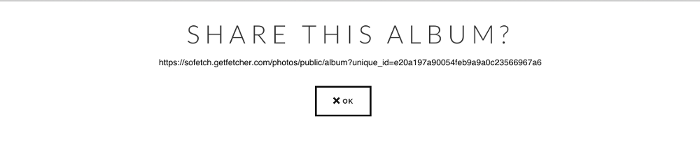
- Make sure you title your gallery and photos what you want the recipient to see…If you want to share or embed a single photo from an album, simply click on the album and click the share (
 ) choose a hi res or lo res version of your icon and cut and paste the url in the (
 ) draft and save.
GOOGLE ALERTS
Add multiple google alerts to monitor online coverage of your event.
- Go to https://www.google.com/alerts
- Type in the name of alert
- Click Show Options and Deliver to: RSS feed.
- Create Alert.
- Click on RSS Icon(
 )
) - Cut and paste url into Google Alert url - titling it whatever you want.
- Click the () icon and the tracking begins!
TROUBLESHOOTING
Always refresh the url of the page if something is not loading; that solves the problem 90% of the time. If you encounter additional trouble email info@getfetcher.com and we will get back to you stat. Right on top of that Rose.